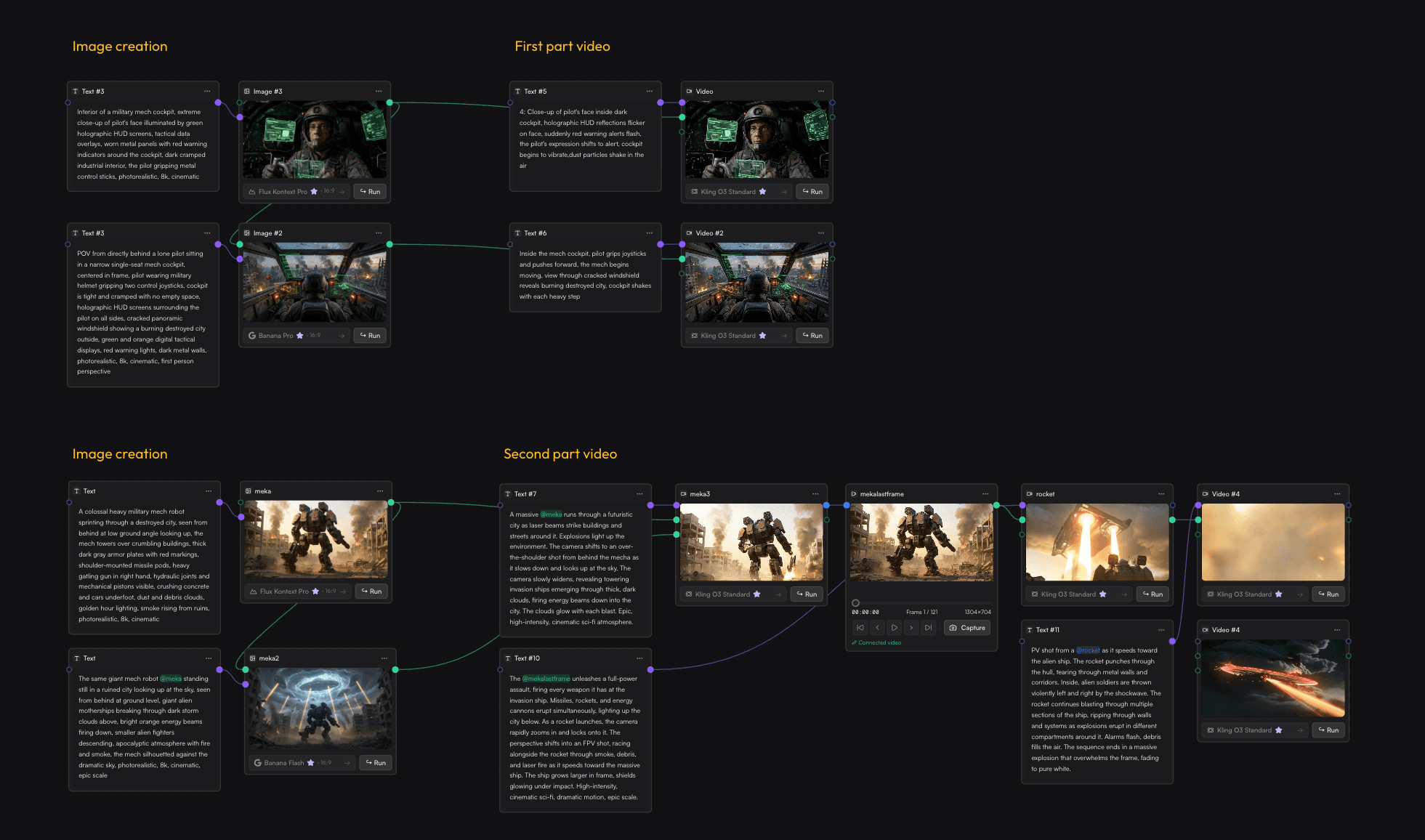
Most AI tools work in tabs. You open one tool for image generation, another for upscaling, a third for video. You download, re-upload, copy-paste prompts between windows.
Node-based workflows fix this by letting you connect AI models visually — like building a circuit board for creativity.
What Is a Node-Based Workflow?
A node editor is a visual canvas where each operation is a box (node) and connections between them define the data flow. If you've used Blender's shader editor, Unreal Blueprints, or ComfyUI, you already know the concept.
In MoodNode, each node represents one operation:
| Node Type | What It Does |
|---|---|
| Text Input | Write a prompt |
| AI Image | Generate an image from text (Flux, DALL-E, SD) |
| AI Video | Turn an image or text into video (Kling, Luma, Pika) |
| Upscale | Increase resolution 2-4x |
| Remove BG | Strip backgrounds automatically |
| Style Transfer | Apply artistic styles to any image |
Connect them together and data flows automatically. Change the prompt at the top, and every downstream node updates.
The Problem with Tab-Switching
Here's a typical AI creative workflow without nodes:
- Write prompt in ChatGPT
- Copy to Midjourney / DALL-E
- Download the image
- Upload to an upscaler
- Download again
- Upload to a video generator
- Wait, download, upload to editor
That's 7 manual steps with 4 file transfers. Every iteration means repeating the whole chain.
With nodes, the same workflow is:
- Connect: Text Input → AI Image → Upscale → AI Video
- Type your prompt
- Click Run
One click, zero file transfers. Change the prompt and re-run — the entire pipeline executes automatically.
Real Advantages
1. Non-Destructive Experimentation
Want to try the same image with 3 different video models? Branch the output to three AI Video nodes. Compare results side by side without losing anything.
2. Repeatable Pipelines
Built a workflow that works? Save it as a template. Use it again tomorrow with different inputs. Share it with your team.
3. Model Mixing
The best results often come from combining models. Use Flux for the initial image, upscale with Aura SR, then animate with Kling. Each model does what it's best at.
4. Visual Debugging
When something looks wrong, you can inspect every step in the chain. Click any node to see its output. The problem becomes obvious when you can see each transformation.
Who Benefits Most?
- Game developers building asset pipelines (concept art → sprites → animation)
- Content creators who batch-produce visuals for social media
- Motion designers combining AI image and video models
- Anyone tired of downloading and re-uploading between AI tools
Getting Started
MoodNode's node editor is free to use with your own API keys (BYOK). Drag nodes from the sidebar, connect them with wires, and hit Run.
Start simple: Text Input → AI Image. Then add more nodes as you get comfortable. The visual approach makes complex workflows feel manageable.