When I started MoodNode, it was a node canvas. Boxes and wires. That's still the heart of it, and for complex, repeatable workflows nothing beats it.
But not every job wants a graph. Sometimes you just want to type "professional headshot, soft window light" and get it. Sometimes you've generated six clips and you want to cut them into one video. Sometimes you want to sketch out a sequence before spending credits. So this year MoodNode grew past the canvas into a few new surfaces — without losing the one it started with.
Short version: MoodNode now has Studio (create by describing it in a chat feed), Reel (a built-in timeline video editor), and Storyboard (plan a sequence of frames), plus a redesigned Home and eight new AI models. All on the same plans — start free with BYOK or use platform credits. Here's the tour.
Studio: describe it, get it
Studio is the fastest way to create in MoodNode. There's no node graph — you type what you want and it generates it, image or video, in a clean chat feed.
What makes it more than a prompt box:
- Reuse anything. Every result can become a reference for the next one — drag it back in or hit "use as input."
- Iterate in place. Follow up with "make it warmer" or "now as a wide shot" and it builds on what's there.
- 50+ models, one picker. Switch from Flux to Seedream to Kling without leaving the feed.
- Sessions that stick. Everything auto-saves and resumes from your Home screen, each session with its own cover.
There are also preset studios — headshots, product shots, and more — that seed the prompt for a specific job so you don't start from a blank box. Studio is public now, so anyone can open it and start.
Reel: turn your clips into a finished video
Generating clips was always easy. Turning them into one watchable video meant exporting to another app. Not anymore — Reel is a timeline editor built into MoodNode.
| What you can do | How |
|---|---|
| Combine clips | Trim, reorder, and stitch multiple clips on a timeline |
| Set the format | Aspect ratio picker: 9:16, 16:9, 1:1, 4:3, 21:9 |
| Handle audio | Mute clips per segment or drop in a music track |
| Review | Scrub the timeline with a filmstrip preview, undo freely |
| Export | One-click MP4, rendered in the browser |
The whole point is that the loop stays in one place: generate a clip with Kling or Veo, send it to Reel, cut it together, export. No download-reimport shuffle between tools.
Storyboard: plan before you generate
Storyboard lets you lay out a sequence of frames — the shots you want, in order — before you commit credits to generating them. It's the planning step that usually lives in your head or a notes app, now sitting next to the canvas where the work happens. Think of it as the blueprint for a multi-shot piece: get the sequence right first, then generate.
A wave of new models
The model lineup grew a lot. Here are the eight most notable additions from the last stretch:
| Model | Type | Best for |
|---|---|---|
| Ideogram 4.0 | Image | Text rendering and layout-heavy designs |
| Seedream 5 | Image | High-quality generation and editing |
| Grok Imagine | Image | Fast generation with reference-based editing |
| Qwen Image 2 / 2 Pro | Image | 2K output with strong text rendering |
| Reve | Image | Mask-free, context-aware edits |
| Kling O3 | Video | Prompt-driven video editing |
| Happy Horse | Video | Video-to-video editing |
| Nano Banana | Image | Multi-reference composition (use this face, this outfit) |
A practical note on the image-editing ones: when you attach a reference to a model like Grok, Seedream, Qwen, or GPT Image, MoodNode automatically routes it to that model's editing endpoint — so "use this character in a new scene" just works from the prompt. The model picker stays clean; you pick one engine and the right mode is chosen for you.
The in-app picker is always the real source of truth — if a model shipped, it's there, with its exact credit cost shown before you generate.
A calmer Home
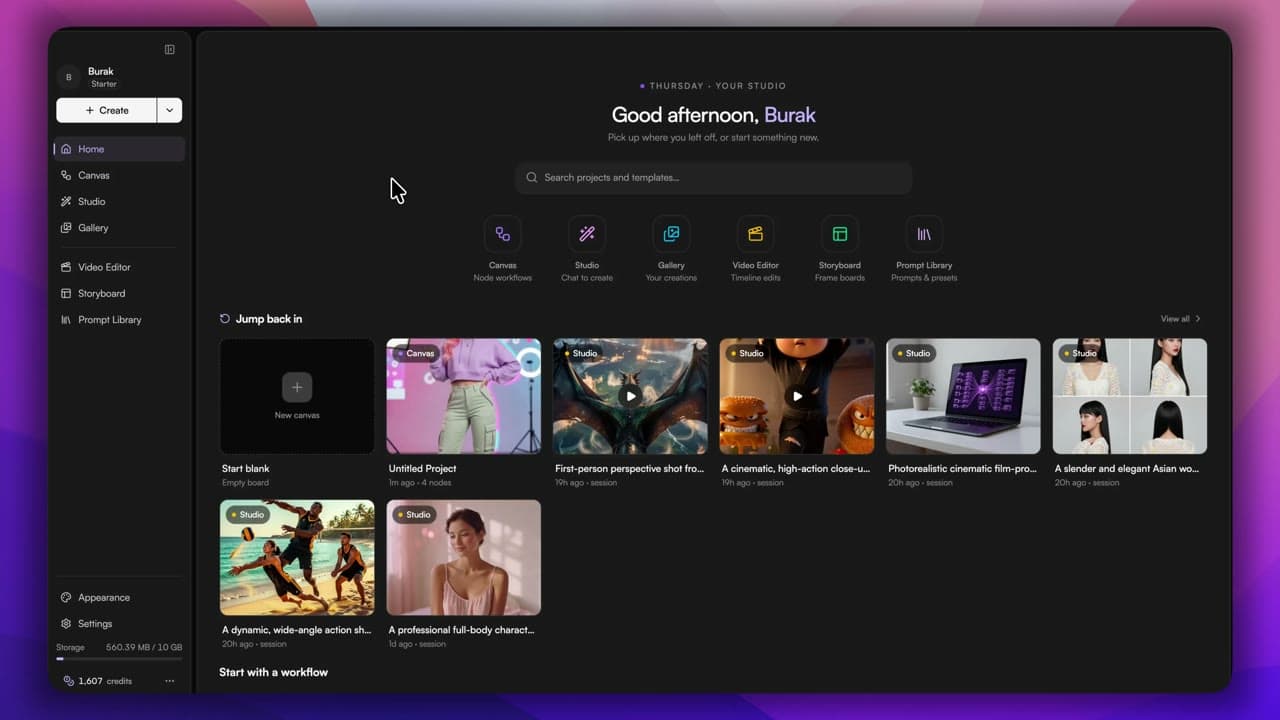
The screen you land on got rebuilt. The new Home opens with a one-tap launcher for every surface — Canvas, Studio, Gallery, Video Editor, Storyboard, Prompt Library — and a "Jump back in" row that mixes your recent canvases and studio sessions in one place, newest first. Studio sessions now get automatic covers from their latest image or video output, so you can tell them apart at a glance instead of scanning identical tiles.
The fastest way to try it
You don't need to plan anything to see whether the new surfaces fit your work:
- Open Studio and type one prompt — that's the whole onboarding.
- Generate a couple of clips, then send them to Reel and cut them into one video.
- Switch models freely — the picker is a dropdown, not a new subscription.
All of it runs on the same plans as the rest of MoodNode. Start free with BYOK and pay providers directly, or use platform credits and skip key management entirely. If you're coming from a node tool and wondering how this compares, I wrote up why node-based workflows beat tab-switching — Studio and Reel are what happens when you keep that one-place philosophy and add the surfaces that don't want a graph.
Frequently asked questions
What's new in MoodNode in 2026?
Three new surfaces and a redesigned Home. Studio lets you create images and video by describing them in a chat feed — no node graph needed. Reel is a built-in timeline video editor that turns your AI clips into a finished MP4. Storyboard lays out a sequence of frames so you can plan shots before generating. On top of that, eight new AI models landed — Ideogram 4.0, Seedream 5, Grok Imagine, Qwen Image 2, Reve, Kling O3, Happy Horse, and Nano Banana — and the Home screen was rebuilt around a one-tap launcher and a recents row.
What is MoodNode Studio?
Studio is a chat-to-create generator. Instead of wiring nodes, you describe what you want in plain language and Studio generates it — images or video — in a clean feed. You can reuse any result as a reference, iterate with a follow-up message, drag an output straight into the next prompt, and pick from 50+ models. Sessions save automatically and resume from your Home screen. It's the fastest path in MoodNode when you don't need a full node workflow.
Can I edit videos inside MoodNode now?
Yes. Reel is a built-in timeline editor. You can trim, reorder, and stitch multiple clips, set the aspect ratio (9:16, 16:9, 1:1, 4:3, 21:9), mute clips or add a music track, scrub the timeline with a filmstrip preview, undo freely, and export an MP4 — all in the browser, without leaving MoodNode or exporting to a separate app.
What new AI models were added to MoodNode?
Eight notable ones in the last stretch: Ideogram 4.0 (text rendering and layout), Seedream 5 (high-quality image generation and editing), Grok Imagine (fast image generation with reference editing), Qwen Image 2 and 2 Pro (2K images with strong text rendering), Reve (mask-free context-aware editing), Kling O3 (prompt-driven video editing), Happy Horse (video-to-video editing), and Nano Banana (multi-reference image composition). The in-app model picker is always the source of truth for exactly what's live.
Do I need a subscription to use the new features?
No. Studio, Reel, Storyboard, and the new models all work on the same plans as the rest of MoodNode. You can start free with Bring Your Own Key (BYOK) and pay providers directly, or use platform credits with no key management. The new surfaces don't cost extra — they're part of the workspace.